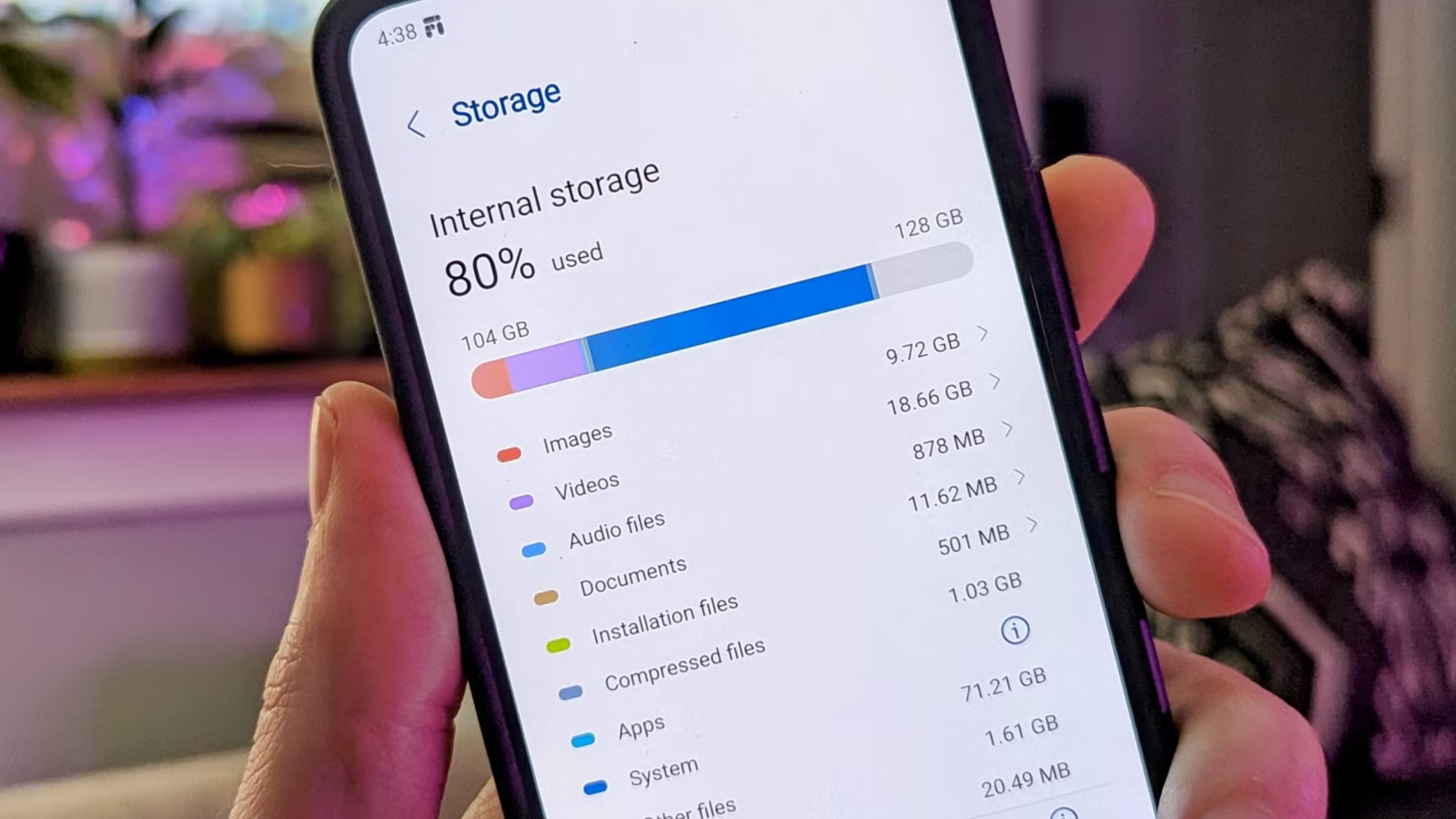
Let’s be honest – there’s nothing more frustrating than a slow phone. You tap on an app, and it takes forever to open. You try to scroll through Instagram, and it stutters like crazy. Sound familiar?
I’ve been there too. And after years of tinkering with Android devices, I’ve figured out what actually works and what’s just a waste of time. So if your Android phone has been acting up lately, here are 10 things you can do right now to make it faster.
1. Restart Your Phone (Seriously, Just Do It)
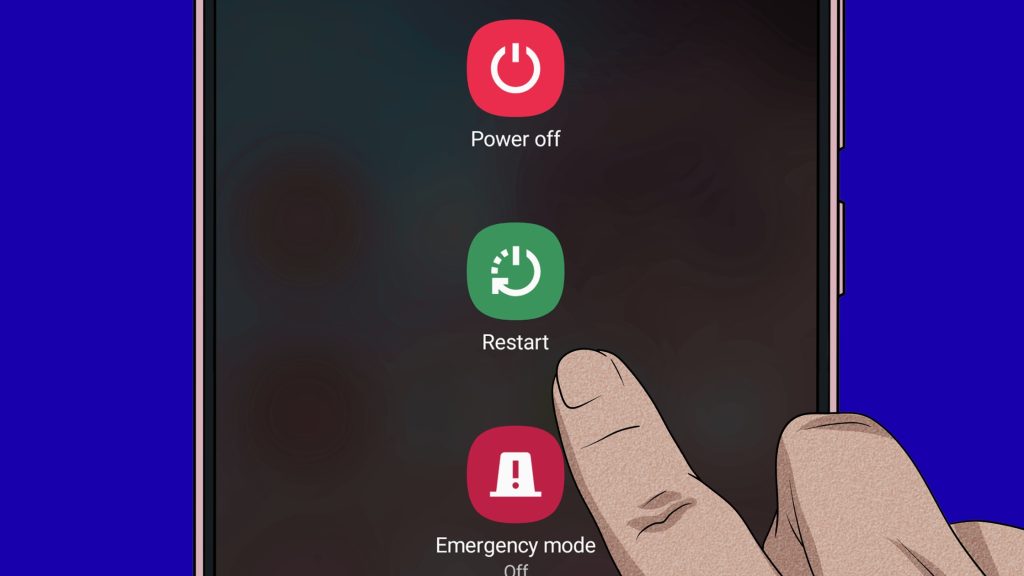
I know this sounds too simple, but when was the last time you actually turned your phone off and back on? Most people keep their phones running for weeks without a restart.
When you restart, your phone clears out temporary files, closes background processes, and frees up RAM. It’s like giving your phone a fresh start. Try restarting at least once a week – you’ll notice the difference.
2. Clear Out App Cache
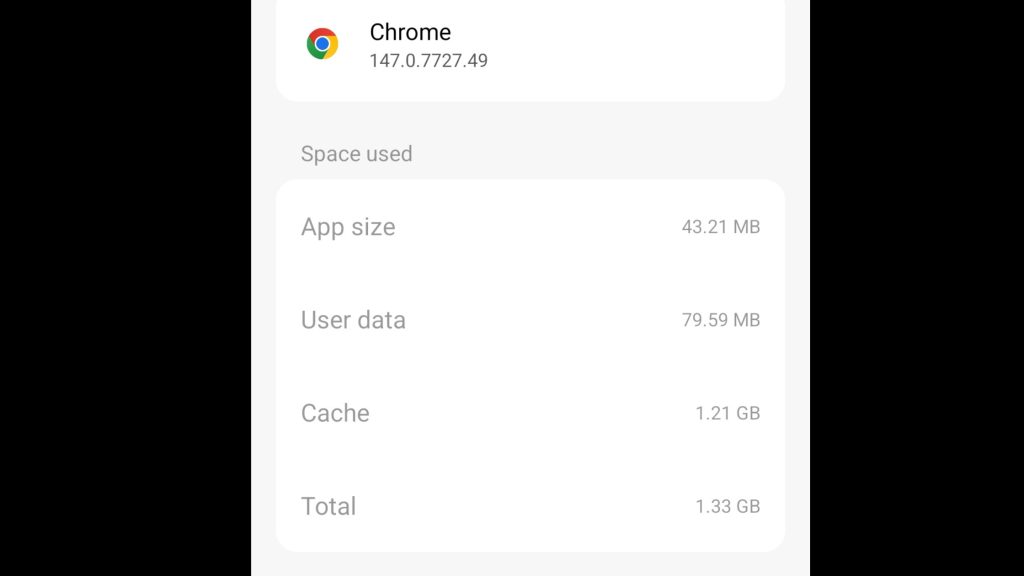
Every app on your phone stores temporary data called cache. Over time, this cache piles up and starts eating into your storage and slowing things down.
Here’s how to clear it: Go to Settings → Apps → pick any app → tap Storage → hit Clear Cache. Start with the apps you use the most like Chrome, YouTube, and social media apps.
Don’t worry – clearing cache won’t delete your accounts or saved data. It just removes temporary junk files.
3. Get Rid of Apps You Never Use
Be honest with yourself – how many apps on your phone do you actually use daily? Probably less than 15. But most people have 50 to 80 apps installed.
Those unused apps aren’t just sitting there quietly. Many of them run background processes, send notifications, and take up valuable storage space. Go through your app drawer and uninstall anything you haven’t opened in the last month.
4. Keep Everything Updated
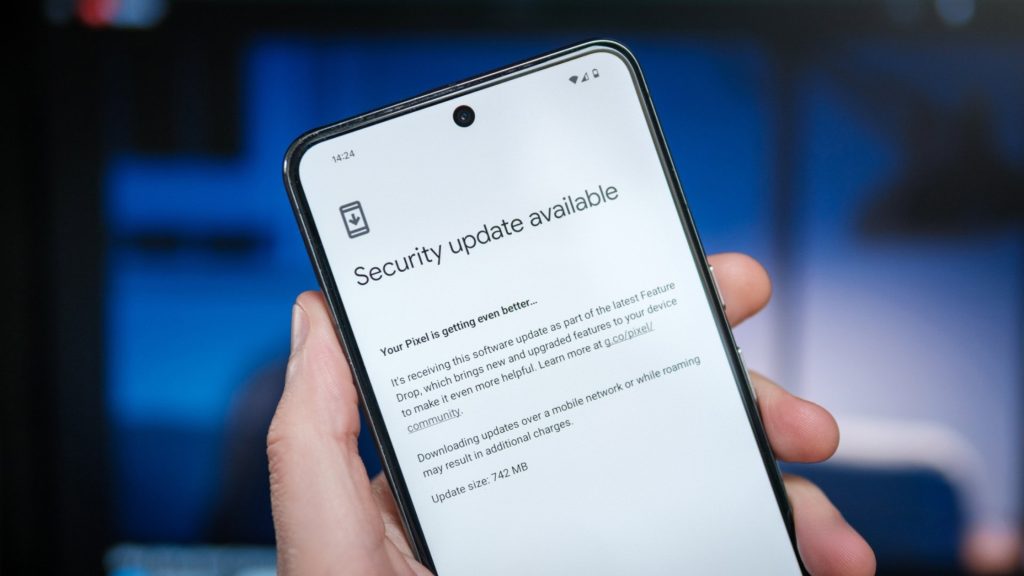
I know those update notifications can be annoying, but they exist for a reason. App updates often include performance improvements, bug fixes, and security patches.
Same goes for your Android system updates. Manufacturers and Google regularly push out updates that can significantly improve your phone’s speed and stability.
Go to Settings → System → Software Update to check for system updates. And open Google Play Store → tap your profile → Manage apps & device → Update all.
5. Turn Down the Animations
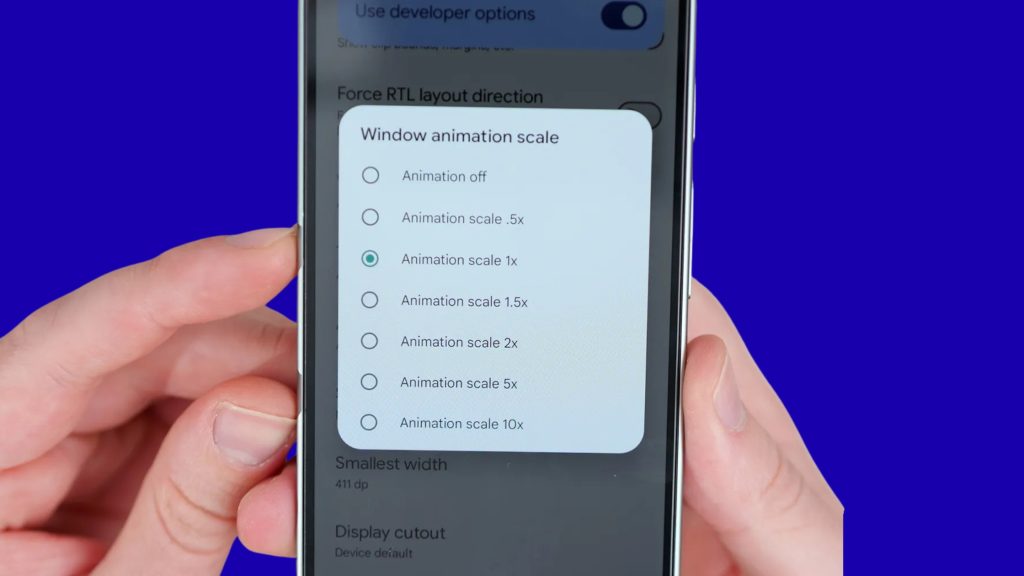
This is a hidden trick that most people don’t know about. Android uses smooth animations every time you open an app, switch between screens, or close something. These look nice, but they actually slow down the experience.
Here’s the trick: Go to Settings → About Phone → tap “Build Number” seven times to unlock Developer Options. Then go back to Settings → Developer Options → find Window Animation Scale, Transition Animation Scale, and Animator Duration Scale. Set all three to 0.5x or turn them off completely.
Your phone will feel noticeably snappier right away.
6. Switch to Lite Versions of Apps
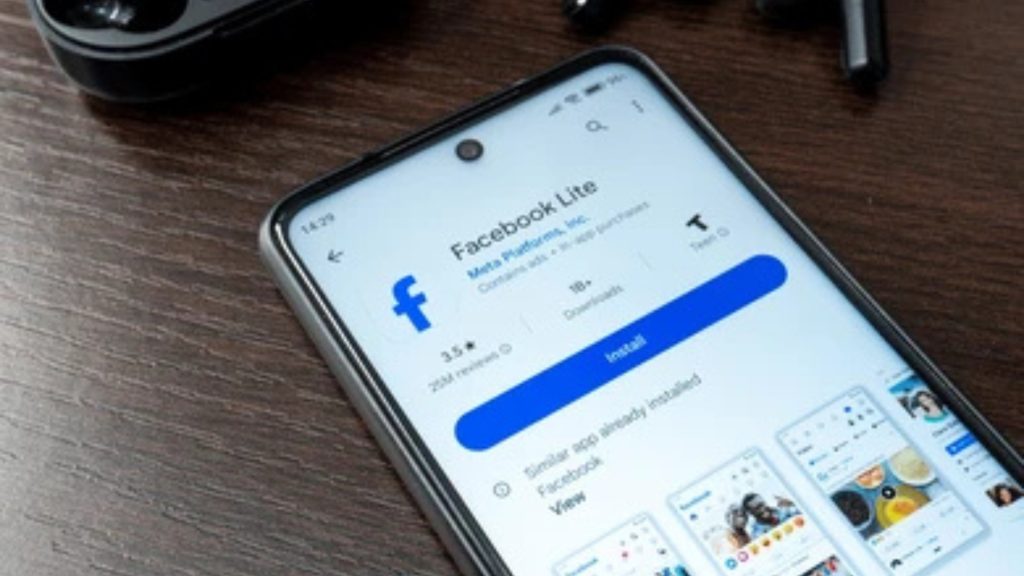
Did you know that most popular apps have lighter versions? These are designed to use less RAM, less storage, and less data. They’re perfect if your phone doesn’t have top-tier specs.
Here are some good ones to try: Facebook Lite instead of Facebook, Instagram Lite instead of Instagram, Google Maps Go instead of Google Maps, and Google Chrome instead of Samsung Internet.
These lite apps give you almost the same functionality without hogging your phone’s resources.
7. Free Up Your Storage
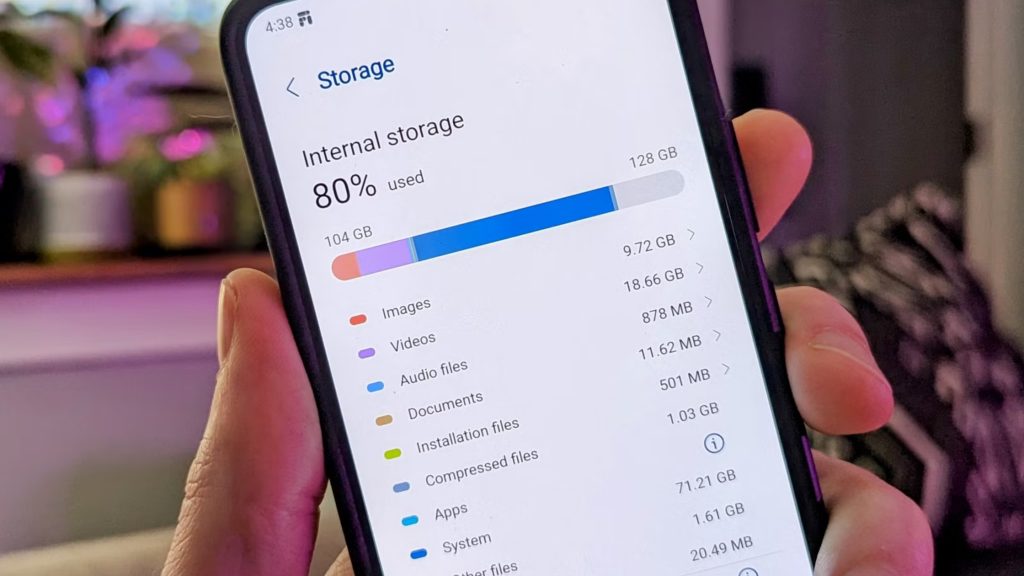
Here’s a rule of thumb – always keep at least 10 to 15 percent of your phone’s storage free. When your storage gets close to full, Android starts struggling. Everything slows down because the system doesn’t have enough room to manage temporary files.
Delete old photos and videos, clear your downloads folder, and remove any large files you don’t need. You can also use Google Photos to back up your pictures to the cloud and then delete them from your device.
8. Turn Off Auto-Sync for Apps You Don’t Need
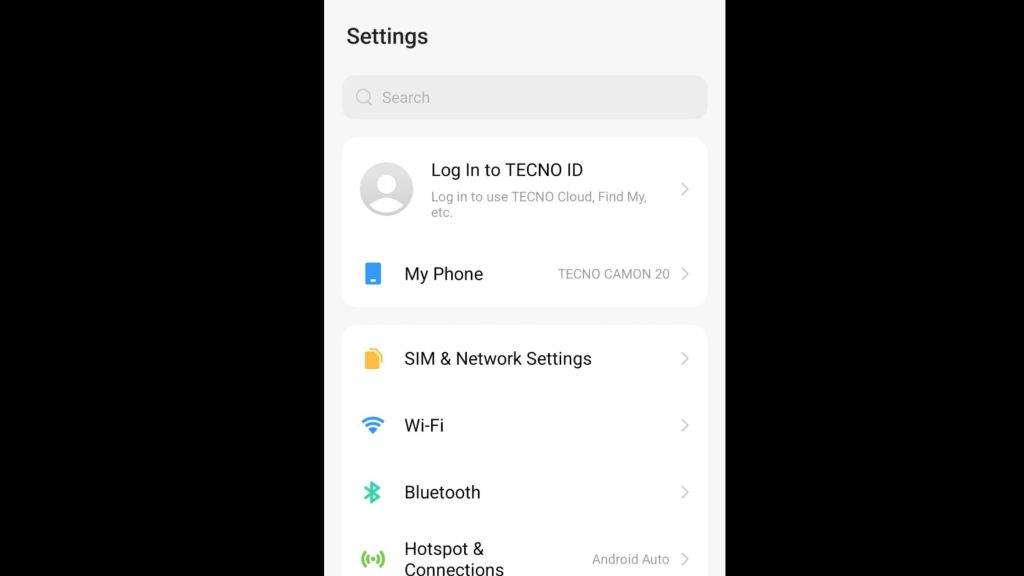
Auto-sync is that feature that keeps your email, social media, and other accounts constantly updated in the background. While it’s useful for your main email, you probably don’t need it running for every single account.
Go to Settings → Accounts and review what’s syncing. Turn off auto-sync for any accounts or apps that don’t need real-time updates. This saves battery and frees up processing power.
9. Ditch the Live Wallpaper

Live wallpapers and fancy animated home screens look cool, but they’re constantly running in the background, using up RAM and battery. If your phone is already slow, a live wallpaper is making it worse.
Switch to a simple static wallpaper. You’ll notice a small but real improvement in performance and battery life. You can find beautiful free wallpapers on Unsplash.com.
10. Factory Reset – The Nuclear Option
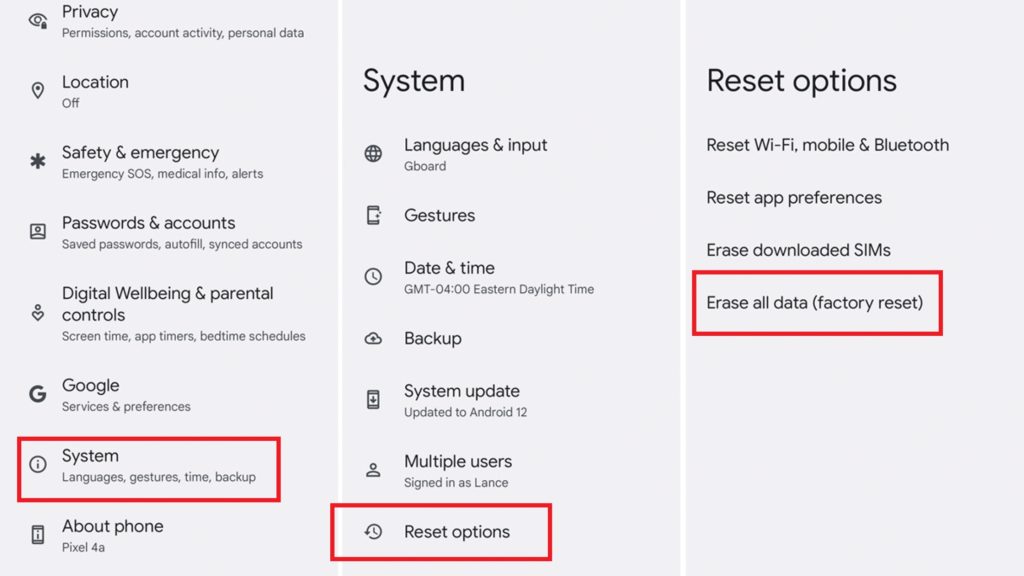
If you’ve tried everything and your phone is still painfully slow, a factory reset might be your best bet. This wipes everything clean and brings your phone back to the way it was when you first bought it.
Before you do this, make sure to back up everything – your photos, contacts, messages, and any important files. You can use Google Drive for a complete backup.
Then go to Settings → System → Reset → Factory Data Reset. After the reset, only install the apps you actually need. Your phone should feel like new again.
Final Paragraph:
Look, not every tip on this list will magically transform your phone into a flagship device. But when you combine several of these together, you’ll definitely notice a real improvement. Start with the easy ones – restart your phone, clear the cache, and delete apps you don’t use. Then work your way through the rest.
Got a tip that worked for you? Drop a comment below and let us know. And if you found this helpful, share it with someone whose phone could use a little speed boost.