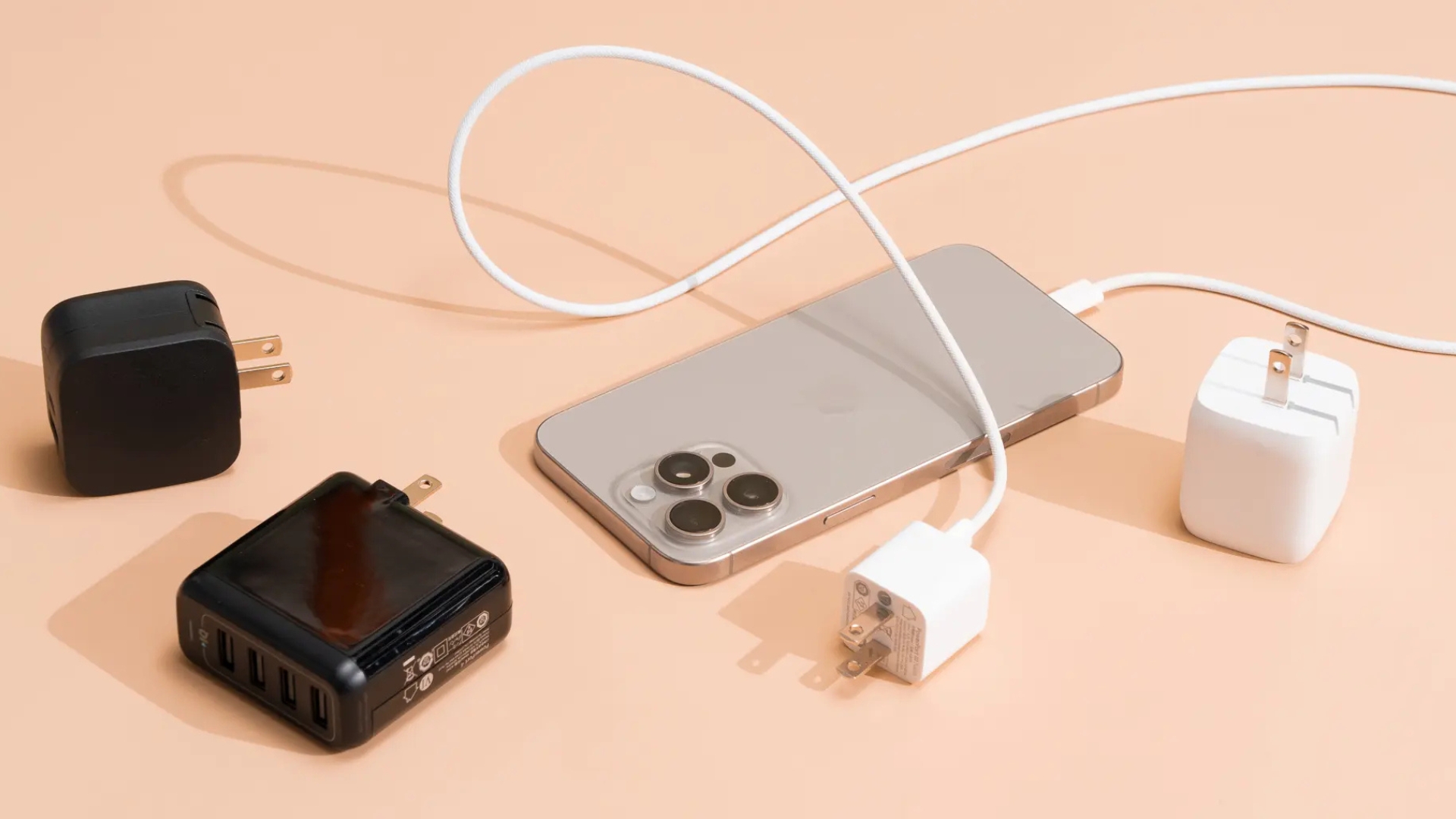
I’ll never forget the day my phone died right when I needed Google Maps to find my Airbnb in a city I’d never been to before. Standing on a random street corner with a black screen in my hand – yeah, that was a wake-up call.
Battery life is one of those things we don’t think about until it becomes a problem. And let’s be real – modern phones have amazing features, but battery life hasn’t really kept up. The good news is that with a few smart adjustments, you can squeeze hours of extra life out of your Android phone.
I’ve tested all of these tips on my own devices over the past year, and I can tell you which ones actually move the needle. Let’s get into it.
Lower Your Screen Brightness
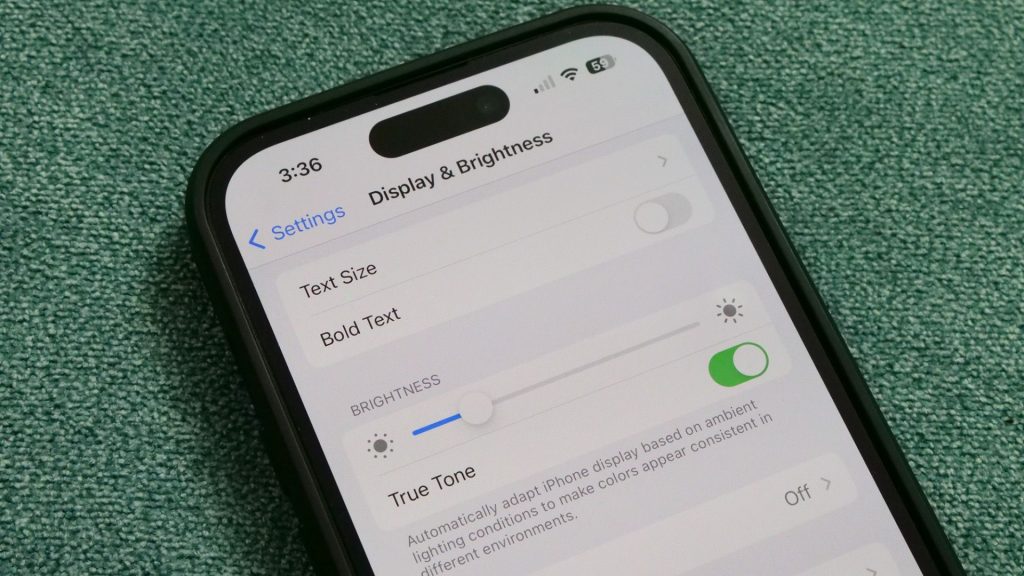
Your screen is the single biggest battery hog on your phone. Period. If you’ve got it cranked up to maximum brightness all day, you’re burning through your battery faster than anything else.
Drop your brightness to around 50 to 60 percent for everyday use. You’ll be surprised how quickly your eyes adjust, and your battery will thank you. Even better, turn on auto-brightness so your phone adjusts based on your surroundings.
Turn On Dark Mode
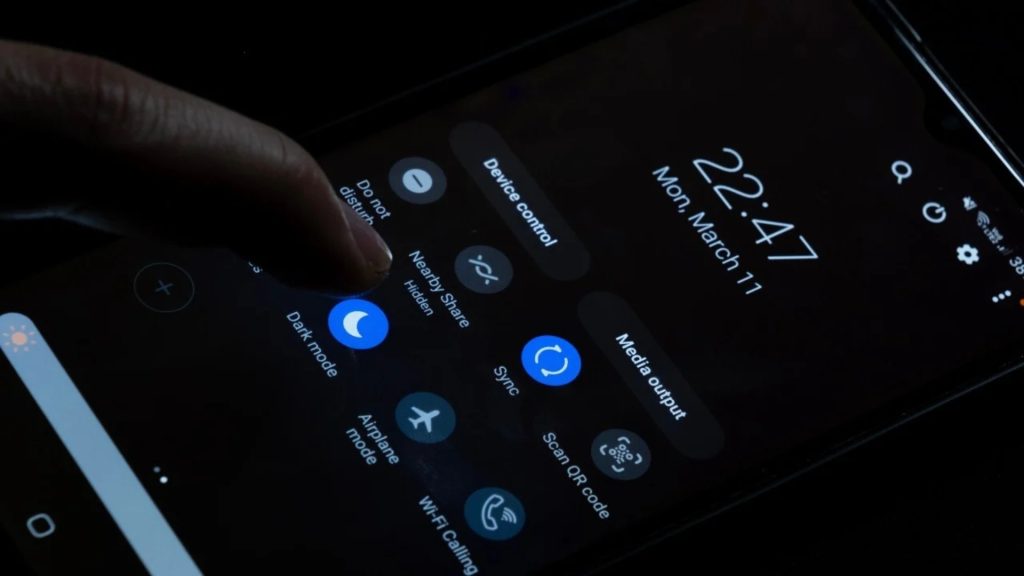
Dark mode isn’t just trendy – it actually saves battery, especially on phones with OLED screens (which most modern phones have). When pixels display black on an OLED screen, they’re essentially turned off, which uses way less power.
Go to Settings → Display → Dark Theme and turn it on. You can even set it to switch automatically at sunset. As a bonus, dark mode is easier on your eyes during nighttime browsing.
Reduce Screen Timeout
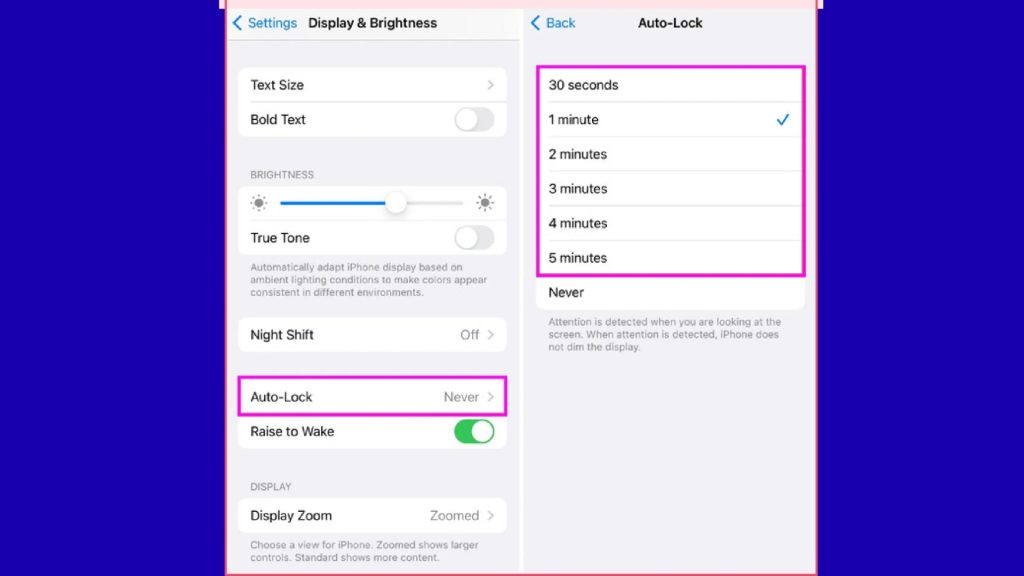
How long does your phone stay on after you stop using it? If it’s set to two minutes or longer, that’s wasted battery. Every second your screen stays lit when you’re not looking at it is a waste.
Go to Settings → Display → Screen Timeout and set it to 30 seconds. Yes, it’s slightly annoying when you’re reading something slowly, but the battery savings add up significantly throughout the day.
Find Out Which Apps Are Eating Your Battery
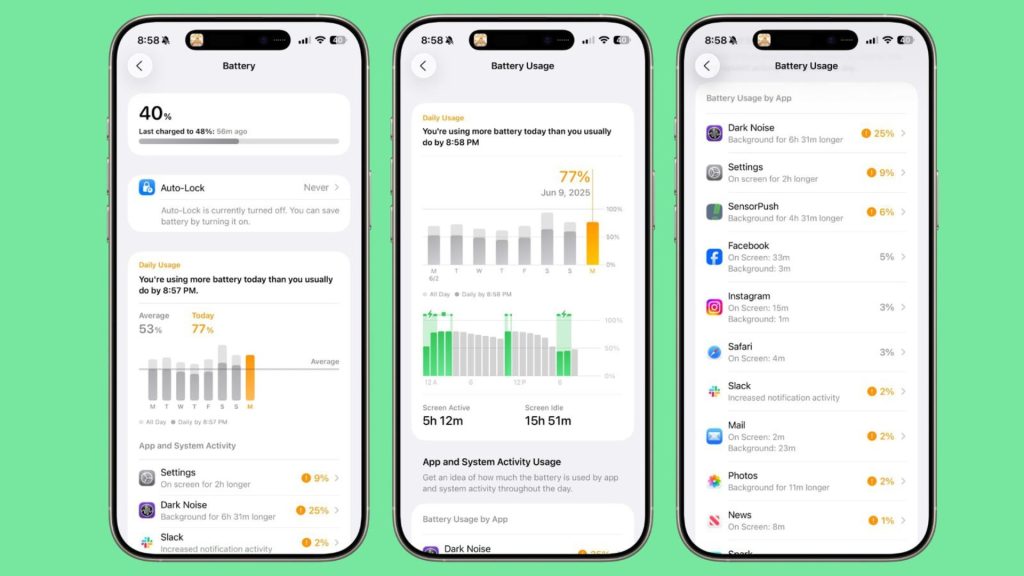
Most people don’t realize that a few specific apps are usually responsible for most of their battery drain. Your phone actually tracks this for you – you just need to look.
Go to Settings → Battery → Battery Usage. You’ll see a list of apps ranked by how much battery they’ve used. The usual suspects are Facebook, Instagram, TikTok, Snapchat, and any games you play. If you see an app you barely use eating up 10 percent of your battery, that’s a problem.
For social media apps, consider using lite versions or accessing them through your browser instead. You’ll save a ton of battery.
Turn Off Background App Refresh
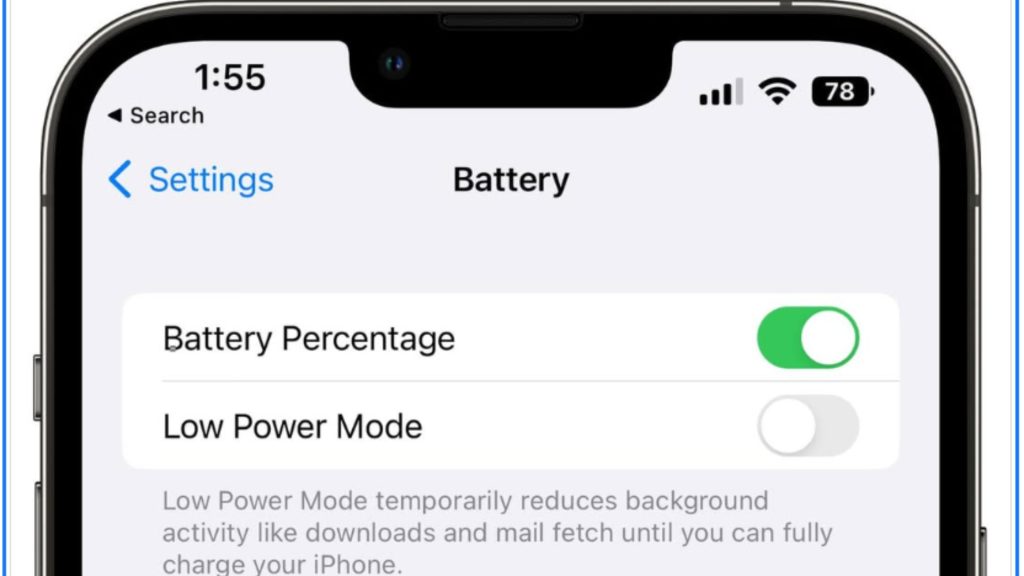
Even when you’re not using apps, many of them keep working in the background – checking for notifications, updating content, syncing data. This drains your battery without you even realizing it.
Go to Settings → Apps → pick an app → Battery → Restrict background usage. Do this for apps that don’t need constant updates, like games, shopping apps, or weather apps.
Be careful not to restrict apps you actually need notifications from, like WhatsApp or your email. But for everything else, restricting background activity can save serious battery.
Disable Always-On Display
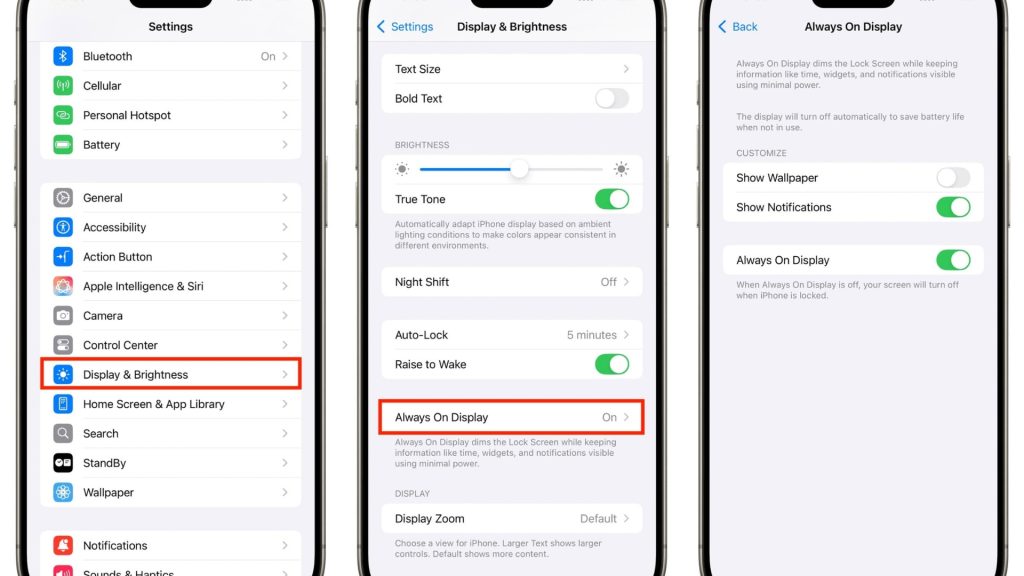
Always-on display is that feature that keeps your screen showing a clock or notifications even when the phone is locked. It looks cool, but it’s constantly using battery.
If you can live without it, turning off always-on display can save you 5 to 10 percent battery throughout the day. Go to Settings → Display → Lock Screen → Always On Display and turn it off.
If you really like the feature but want some savings, set it to only activate when you tap the screen instead of running 24/7.
Turn Off Location Services for Apps That Don’t Need It
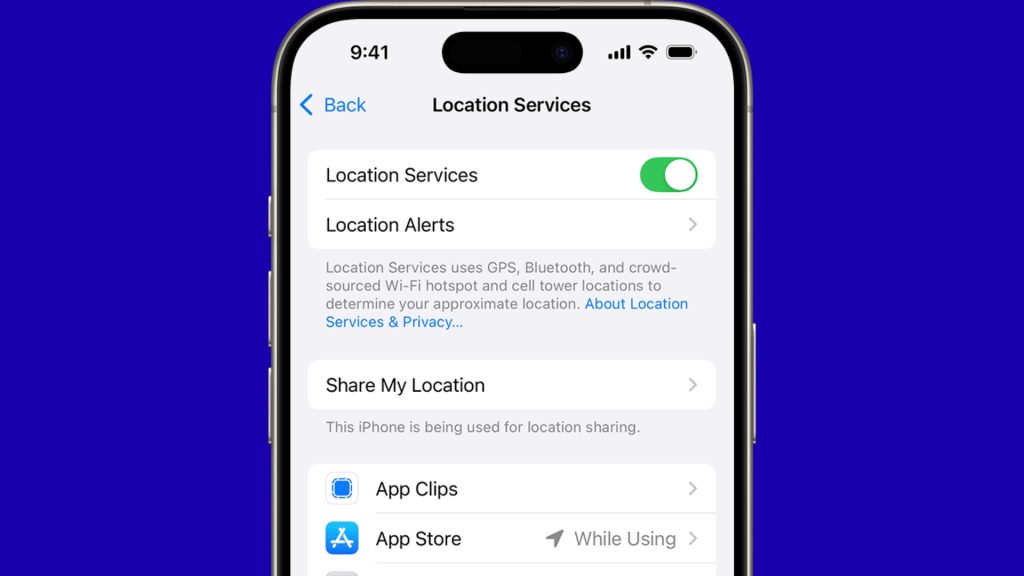
Why does that flashlight app need to know your location? Or that random game? Many apps request location access just to collect data, and constant GPS use is a huge battery drain.
Go to Settings → Location → App Permissions. Review which apps have location access and change unnecessary ones to “Deny” or “Allow only while using the app.” For apps that absolutely need your location, like Google Maps, this is fine, but most apps don’t need it.
Turn Off 5G When You Don’t Need It
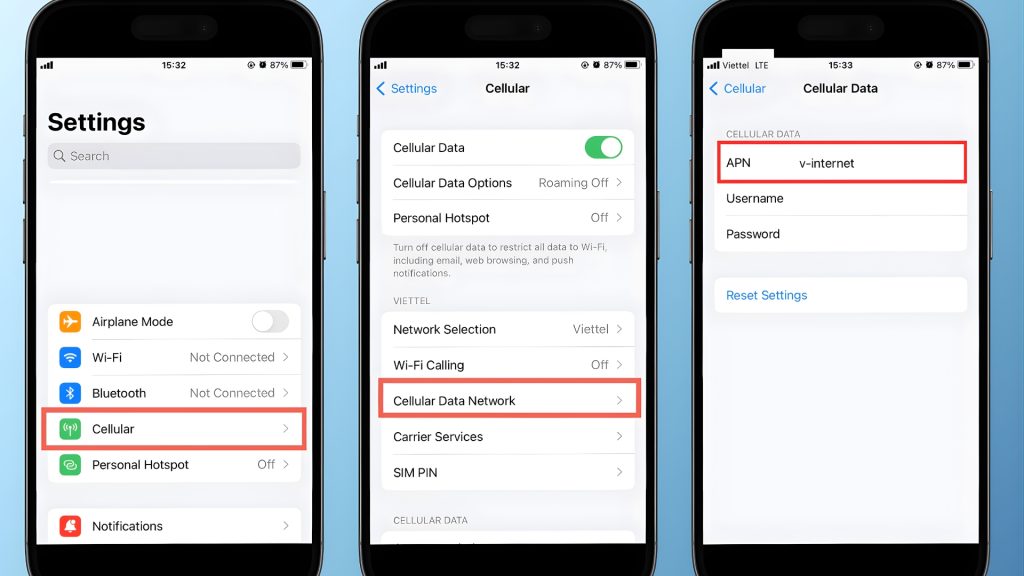
5G is awesome when you have it, but it uses noticeably more battery than 4G LTE. If you’re in an area with weak 5G signal, your phone is constantly searching for a better connection, draining your battery in the process.
If 5G isn’t critical for what you’re doing, switch to 4G LTE. Go to Settings → Network & Internet → Mobile Network → Preferred Network Type and select LTE.
You probably won’t even notice the speed difference for normal browsing and social media, but you’ll definitely notice your battery lasting longer.
Use Wi-Fi Instead of Mobile Data When Possible
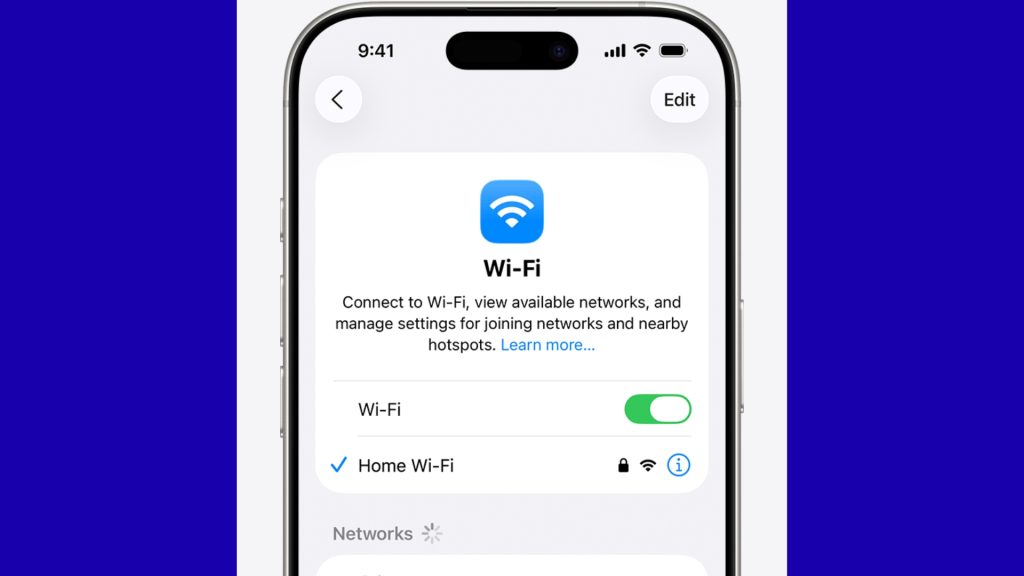
Your phone uses less battery when connected to Wi-Fi compared to mobile data. So whenever you’re at home, work, or somewhere with reliable Wi-Fi, make sure you’re connected to it.
Also, turn off Wi-Fi when you’re somewhere without any networks. Otherwise, your phone keeps scanning for available networks, which uses battery unnecessarily.
Disable Bluetooth and Hotspot When Not in Use
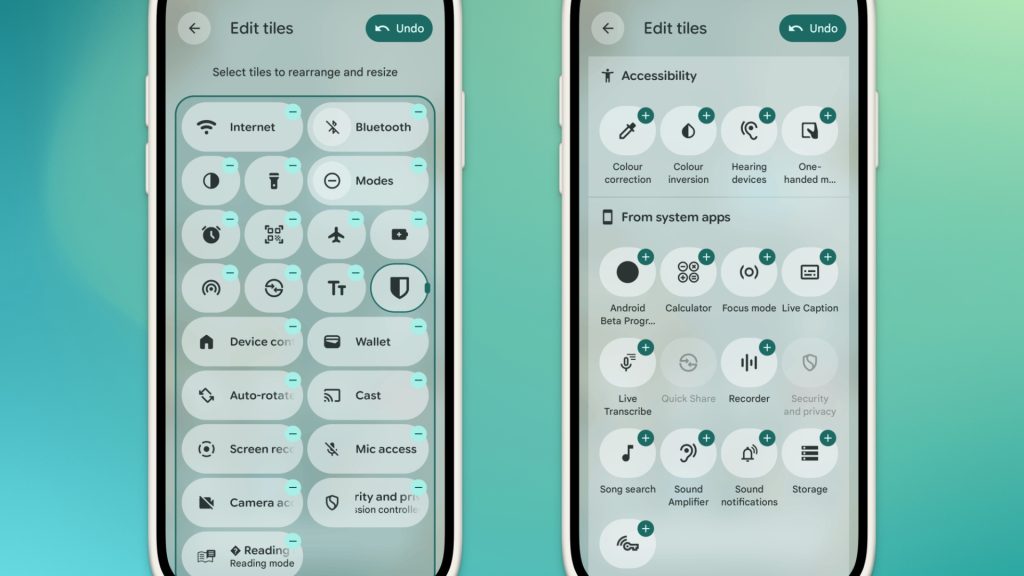
Bluetooth is constantly broadcasting and searching for devices to connect to. Even when you’re not actively using it, it’s draining your battery in small but consistent amounts.
Same goes for the hotspot feature. If you’re not using it to share your internet with another device, turn it off. These small things might seem trivial, but they add up over the course of a day.
Swipe down on your notification panel and toggle off Bluetooth and hotspot when you don’t need them.
Enable Battery Saver Mode
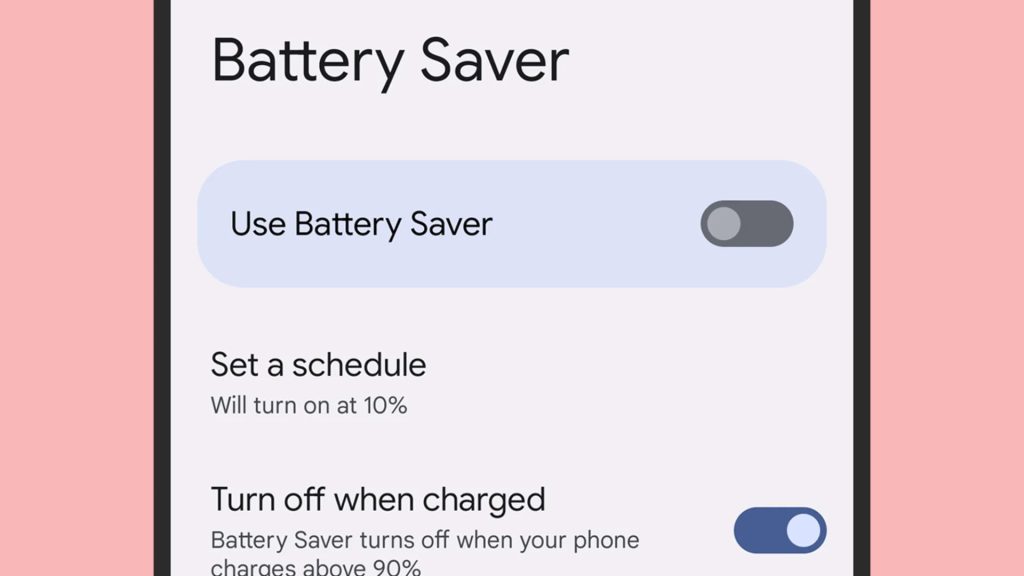
Most Android phones have a built-in battery saver mode that automatically reduces background activity, limits visual effects, and tweaks settings to extend battery life when you need it most.
Go to Settings → Battery → Battery Saver. You can turn it on manually, or set it to activate automatically when your battery hits a certain percentage – I’d recommend setting it to kick in at 20 percent.
In an emergency, when your battery is critically low, this mode can buy you several extra hours of basic functionality.
Reduce Push Notifications
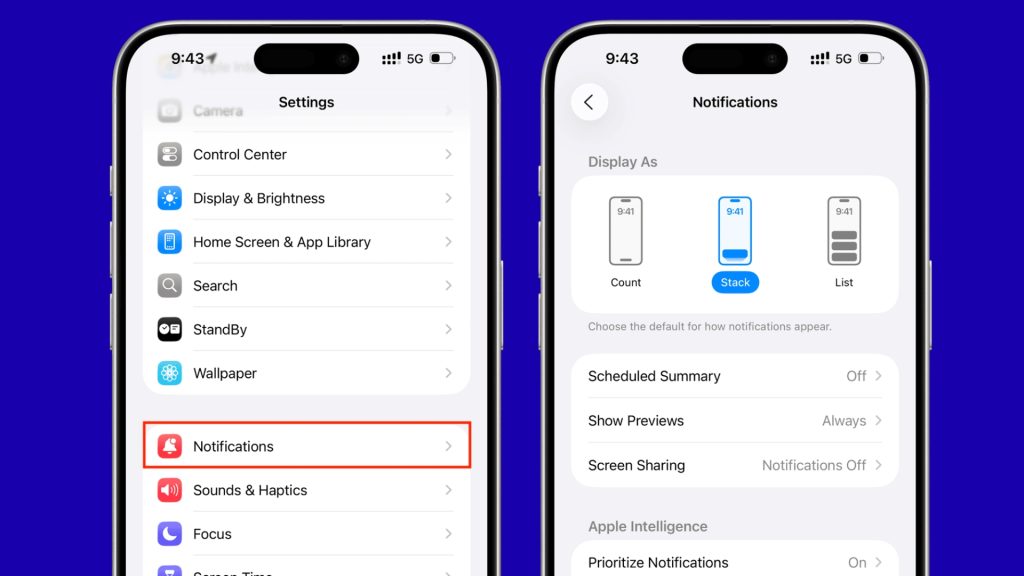
Every time your phone gets a notification, the screen lights up briefly, even just to display the notification. If you’re getting hundreds of notifications a day from various apps, that’s a lot of small battery hits.
Go through your apps and disable notifications for ones you don’t really care about. Do you really need to know every time someone likes your Instagram post? Probably not. Go to Settings → Notifications → App Notifications and turn them off for non-essential apps.
Bonus: you’ll be less distracted and have a more peaceful phone experience too.
Avoid Extreme Temperatures
This one’s about your battery’s long-term health. Lithium-ion batteries hate extreme temperatures – both hot and cold. Leaving your phone in a hot car or charging it under your pillow can permanently damage your battery’s capacity.
Try to keep your phone between 32 and 95 degrees Fahrenheit (0 to 35 Celsius) whenever possible. If your phone feels hot to the touch, take off the case to help it cool down. And never charge your phone if it’s overheating.
Use Original or Quality Chargers
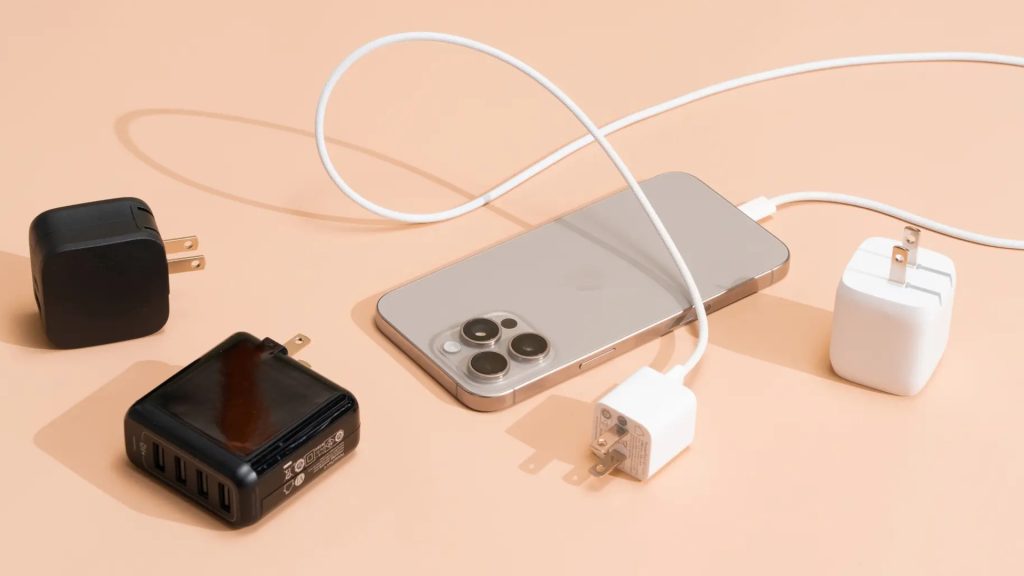
Cheap, off-brand chargers can damage your battery over time. They might output the wrong voltage or have unstable current that wears down your battery cells. The few dollars you save isn’t worth shortening your phone’s lifespan.
Stick with the original charger that came with your phone, or buy from reputable brands like Anker, Belkin, or Apple. If your phone supports fast charging, make sure your charger does too. Just don’t use fast charging all the time – occasional slow charging is actually better for battery longevity.
Restart Your Phone Every Few Days
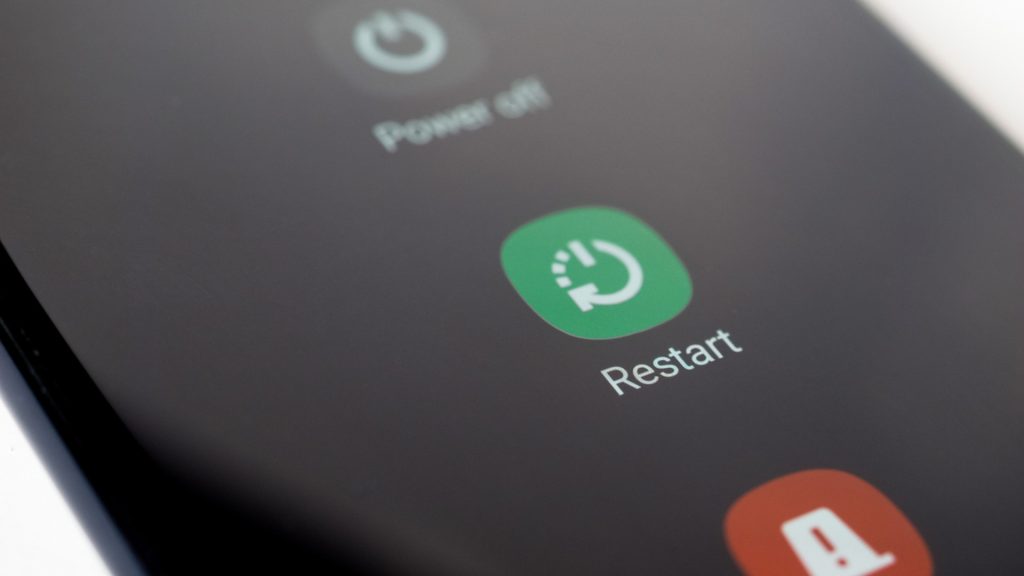
This one might seem unrelated to battery life, but it actually helps. Restarting your phone every few days clears out any apps that might be misbehaving in the background and consuming battery without you knowing.
A fresh restart resets all background processes and gives your phone a clean slate. It’s an easy habit that can prevent slow battery drain issues from creeping up over time.
Final Paragraph:
Battery life is one of those things where small habits make a massive difference over time. You don’t need to do all 15 of these tips at once – pick the ones that fit your usage and start there. Just adjusting your brightness and screen timeout alone can make a noticeable difference.
What battery hack works best for you? Drop a comment below – I’m always looking for new tricks to try. And if your phone has been dying way too fast lately, share this with someone who needs it. Their phone will thank you.