Introduction :
Did you know your Android phone could be silently recording your voice, tracking every place you visit, and sharing your personal data with hundreds of companies — even when you’re not using it?
If you live in the United States, this isn’t just a privacy issue — it’s a serious security risk. With data breaches, identity theft, and aggressive targeted advertising hitting record highs in 2026, your Android phone holds more sensitive information than your own wallet does.
The scariest part? Most of these spying features are turned ON by default the moment you unbox your phone.
In this guide, you’ll discover the 7 most dangerous Android settings you need to turn OFF right now to protect your privacy. Each setting comes with 7 detailed step-by-step instructions and a clear explanation, so you can secure your phone in under 10 minutes.
Let’s get start :
💡 Before you begin: If your phone also feels slow or drains battery quickly, check out our guides on
How to Speed Up Your Android Phone in 2026
How to Save Battery Life on Your Android Phone – 15 Tips That Work
Location History – Stop Google From Mapping Your Every Move
Google’s Location History feature secretly creates a detailed timeline of every place you’ve ever visited — your home, workplace, doctor’s office, your kid’s school, even that gas station you stopped at last Tuesday. This data is stored on Google’s servers indefinitely and can be accessed by advertisers, law enforcement, or hackers if breached.
Why this is dangerous for US users:
Americans on average have over 1,500 location data points collected per month. That’s a complete map of your private life sitting on Google’s servers — and it has already been used in court cases without users’ knowledge.
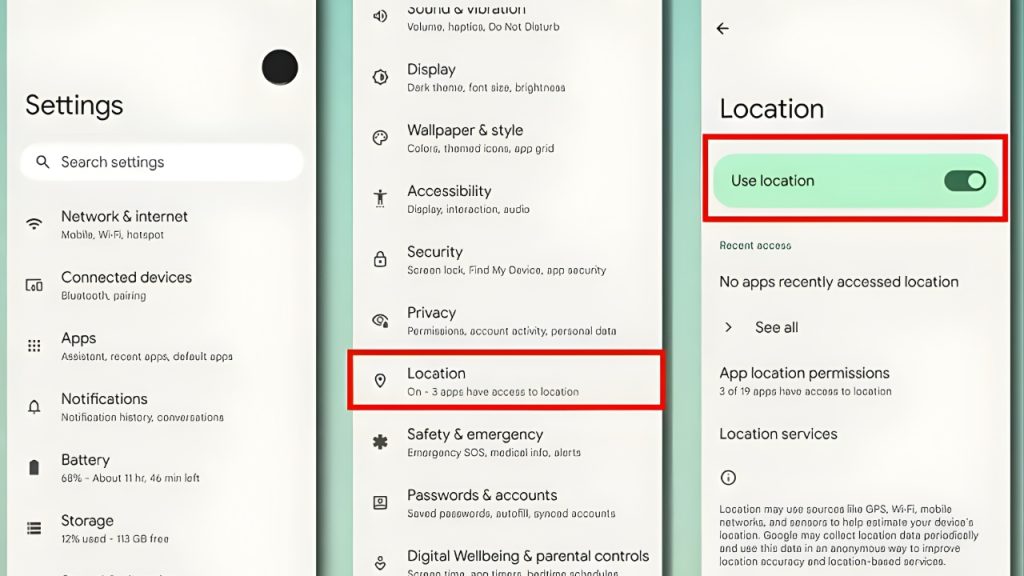
How to Turn OFF Location History (7 Detailed Steps):
Open the Settings app on your Android phone (the gear-shaped icon).
Scroll down and tap “Location” (on Samsung phones, it may say “Location services”).
Tap “Google Location Services” or “Advanced” depending on your phone model.
Select “Location History” — this will open your Google Account’s Activity Controls page.
Tap the “Turn Off” button under the Location History section.
In the confirmation pop-up, scroll down and tap “Pause” to confirm.
Finally, scroll further and tap “Delete all Location History” to permanently erase past data.
🔗 Official Source: Google Account Help – Manage Your Location History
Web & App Activity – Stop Google From Recording Everything You Do :
This is one of the most invasive settings on Android. Web & App Activity records every Google search you make, every YouTube video you watch, every app you open, and even your interactions with voice assistants. Google uses this to build a shockingly detailed personality profile of you.
Why this is dangerous:
Once enabled, this setting tracks your behavior 24/7 — even when your phone is in your pocket. This data is then used to serve hyper-targeted ads, but it can also be sold to third parties or exposed in breaches.
How to Turn OFF Web & App Activity (7 Detailed Steps):
Open your phone’s Settings app.
Tap on “Google” (usually near the top or middle of the list).
Tap “Manage your Google Account” at the top of the screen.
Swipe to the “Data & Privacy” tab at the top.
Scroll down to “History settings” and tap “Web & App Activity”.
Tap “Turn Off” and confirm by tapping “Pause”.
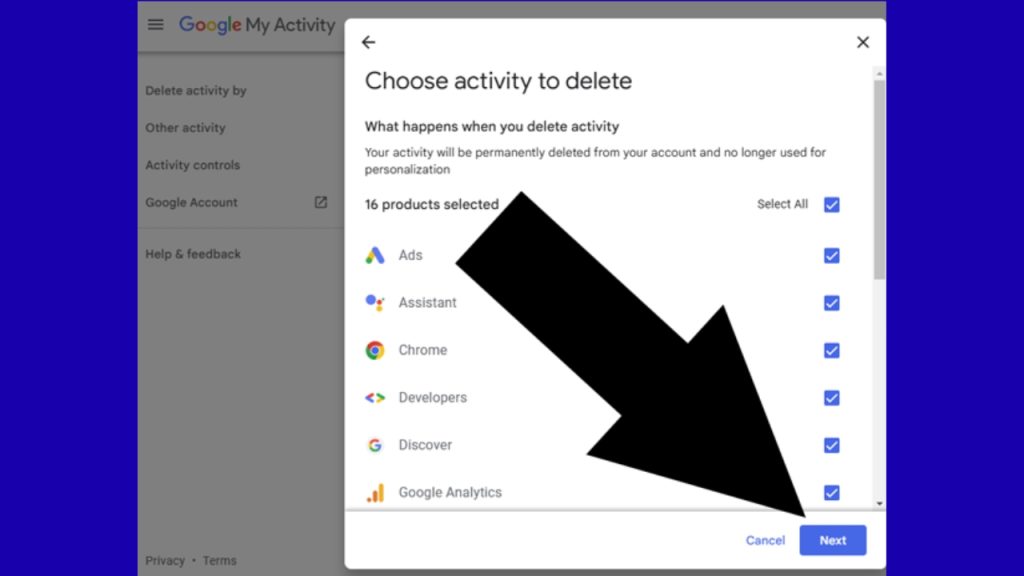
Tap “Manage activity” → menu (3 dots) → “Delete activity by” → “All time” to wipe past records.
🔗 Official Source: Google Help – Manage Web & App Activity
Ad Personalization & Advertising ID – Stop Being Tracked Across Apps :
Every Android phone has a unique Advertising ID — basically a digital fingerprint that lets advertisers track you across every app you use. Even if you uninstall an app, this ID follows you forever, building a profile that includes your shopping habits, interests, and even health-related searches.
Why this is dangerous:
In the US, your Advertising ID is legally treated as non-personal data, meaning companies can buy and sell it freely without your consent. Data brokers make billions off this loophole.
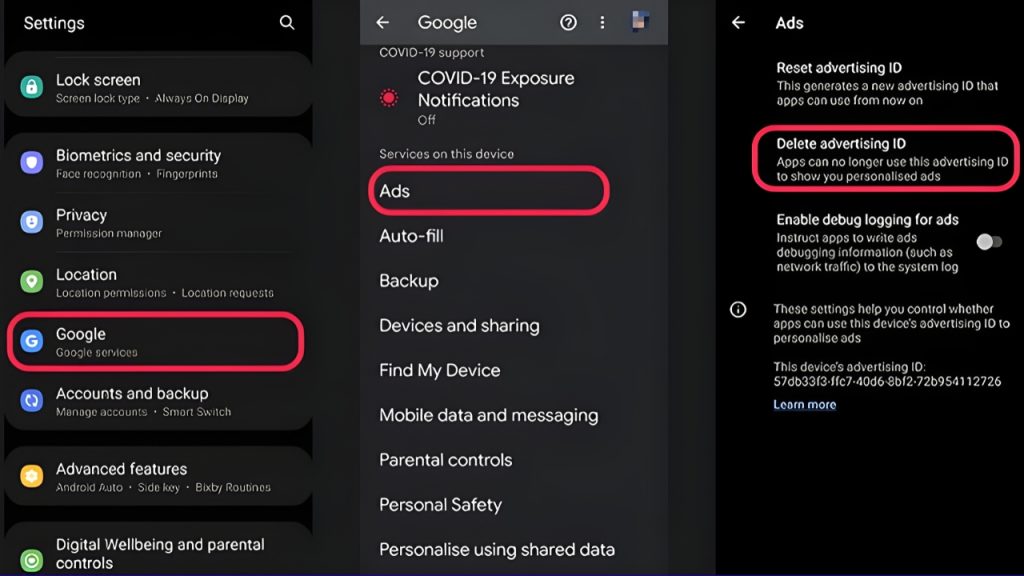
How to Disable Ad Personalization (7 Detailed Steps):
Open the Settings app on your Android phone.
Scroll down and tap “Google”.
Tap “Ads” (or “All services” → “Ads” on newer Android versions).
Tap “Delete advertising ID” (this is the most important step!).
Confirm by tapping “OK” in the pop-up box.
Go back and toggle OFF “Opt out of Ads Personalization”.
Restart your phone to apply changes across all apps.
🔗 Official Source: Google Ads Settings – Personalized Advertising
App Permissions – Stop Apps From Spying Through Your Camera & Microphone :
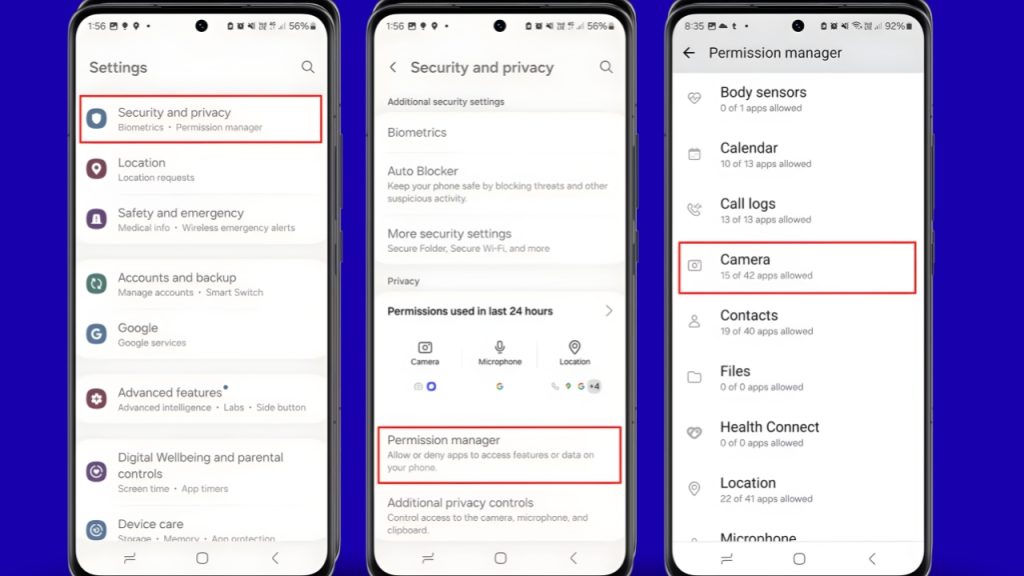
Have you ever talked about a product, then suddenly seen ads for it? You’re not paranoid — many apps have microphone access they don’t actually need. Same goes for camera, contacts, and location. A weather app does not need access to your photos.
Why this is dangerous:
Studies show the average American has 40+ apps on their phone, and over half have permissions they don’t need to function. Each one is a potential data leak.
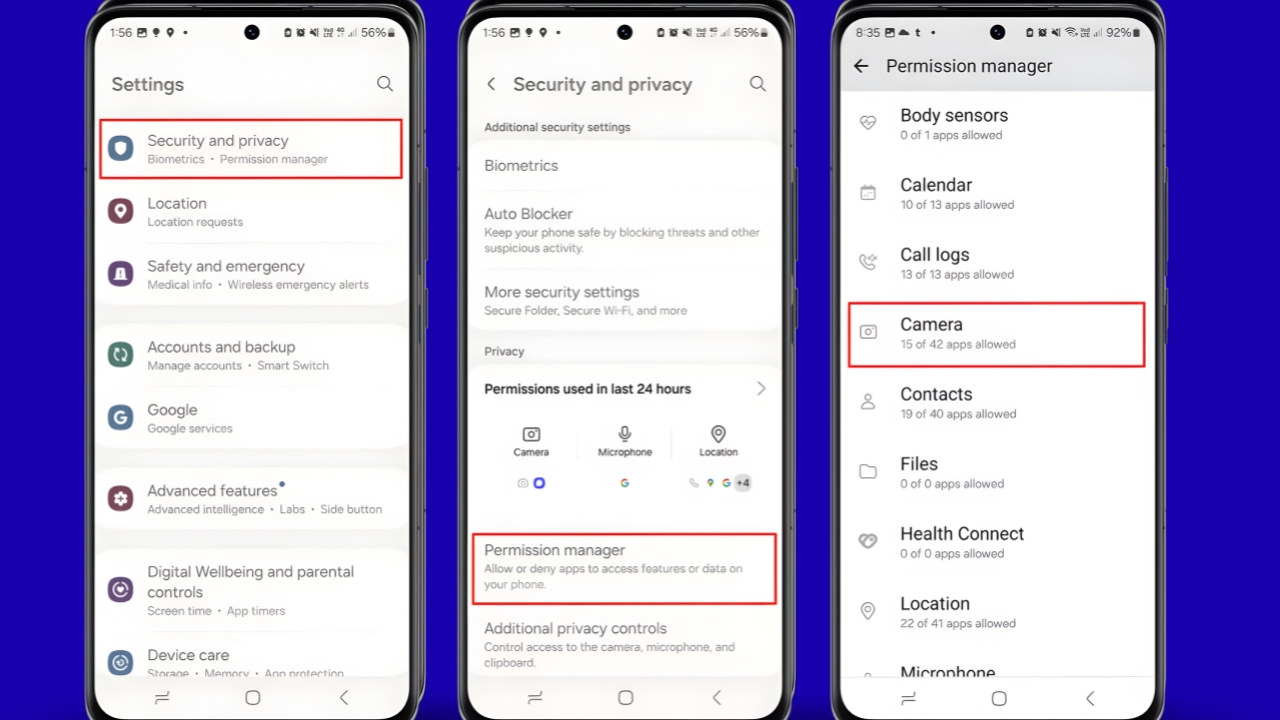
How to Audit & Revoke App Permissions (7 Detailed Steps):
Open Settings and tap “Privacy” (or “Privacy & Security”).
Tap “Permission Manager” (called “App permissions” on some phones).
Tap “Microphone” to see every app that can listen to you.
For each app you don’t trust, tap it and select “Don’t allow”.
Repeat the process for “Camera”, “Location”, “Contacts”, and “Files and Media”.
Pay extra attention to apps with “Allow all the time” location access — change them to “Only while using the app”.
For unused apps with sensitive permissions, uninstall them entirely from the Play Store.
🔗 Official Source: Android Help – Change App Permissions
“Hey Google” Voice & Audio Activity – Stop Google From Recording Your Conversations :
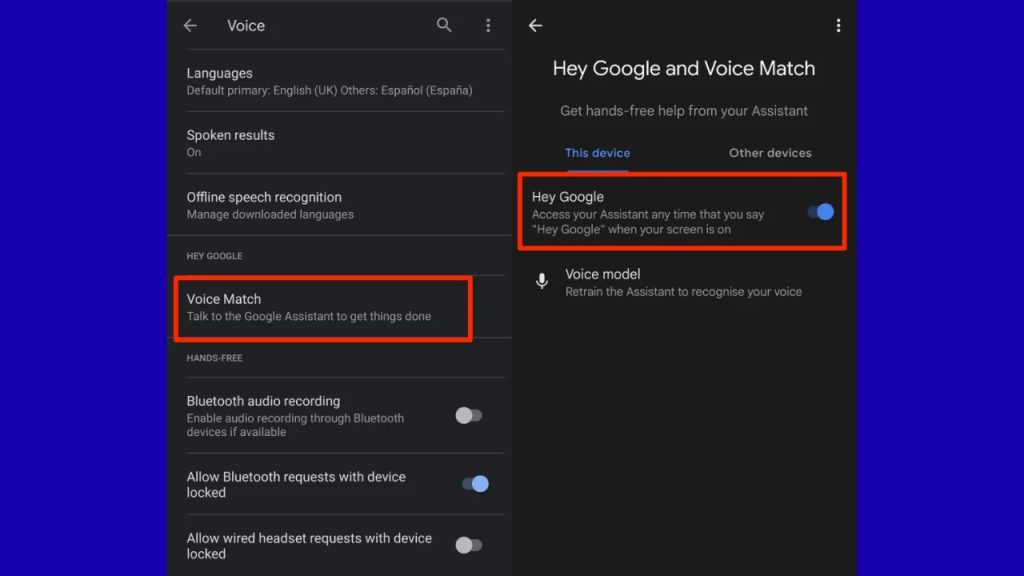
When you say “Hey Google,” your phone starts recording — but here’s the secret: it’s always listening for the wake word, and sometimes it accidentally records full conversations. These recordings are stored on Google’s servers and have even been reviewed by human contractors.
Why this is dangerous:
In 2019, a major leak revealed that Google contractors were listening to private bedroom conversations, medical discussions, and arguments. Even though Google promised changes, voice data is still being collected from millions of US Android users.
How to Disable Voice & Audio Activity (7 Detailed Steps):
Open the Settings app and tap “Google”.
Tap “Manage your Google Account”.
Go to the “Data & Privacy” tab.
Scroll down to “History settings” and tap “Web & App Activity” again.
Uncheck the box that says “Include voice and audio activity”.
Go back, then tap “Manage activity” → filter by “Voice & Audio” → “Delete all”.
Open the Google app → Profile picture → Settings → “Voice” → toggle OFF “Hey Google” detection (if you don’t use Assistant).
🔗 Official Source: Google Account – Voice & Audio Activity
Usage & Diagnostics – Stop Sending Anonymous (But Detailed) Reports :
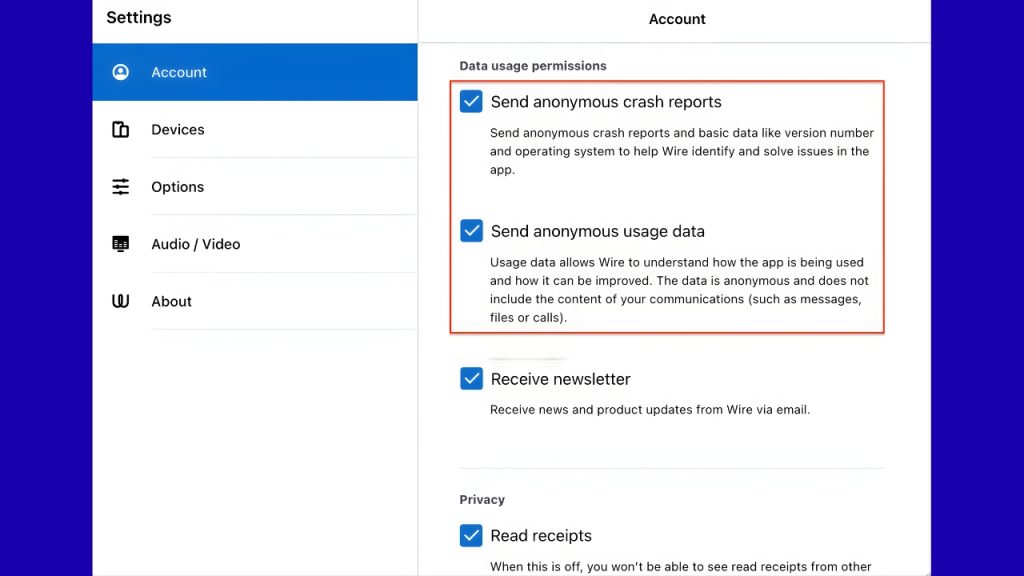
Google collects “anonymous” usage data from your phone — but research has shown this data is often detailed enough to identify individual users. It includes app crash reports, device performance, network info, and battery stats sent automatically in the background.
Why this is dangerous:
This setting also drains your mobile data silently and reduces battery life. Worse, “anonymous” doesn’t always mean private — researchers have repeatedly de-anonymized similar datasets.
How to Turn OFF Usage & Diagnostics (7 Detailed Steps):
Open Settings on your Android phone.
Scroll all the way down and tap “About phone” (or “About device”).
Tap “Legal information” or “Google legal”.
Select “Google Play Services” → “Usage & diagnostics”.
Toggle the switch to OFF.
Go back to Settings → Privacy → “Usage & diagnostics” and toggle that off too.
On Samsung phones, also check Settings → Privacy → “Send diagnostic data” and disable it.
🔗 Official Source: Android Help – Usage & Diagnostics Data
Personalized Ads & Sensitive Notifications on Lock Screen :
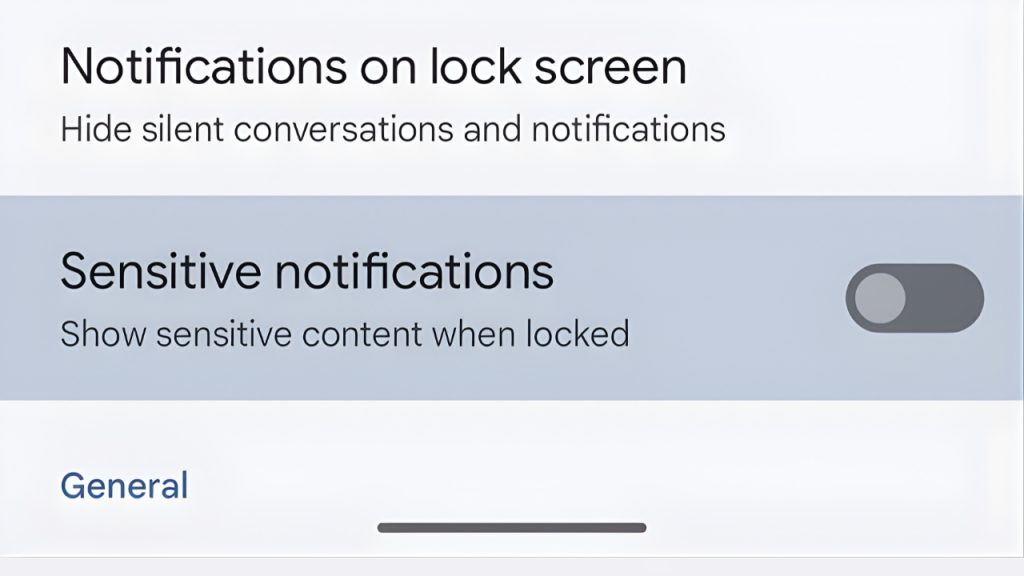
Your lock screen can be the biggest privacy leak you never noticed. By default, notifications show full message content — meaning anyone who picks up your phone can read your texts, banking alerts, 2FA codes, and private messages without unlocking it. Combined with personalized ads on lock screens, this is a goldmine for anyone snooping.
Why this is dangerous:
A friend, coworker, or stranger glancing at your phone can see:
Bank account balances
Two-factor authentication codes
Private messages from contacts
Email previews
Calendar appointments
How to Lock Down Lock Screen Privacy (7 Detailed Steps):
Open Settings and tap “Notifications”.
Tap “Lock screen notifications” (or “Notifications on lock screen”).
Select “Hide sensitive content” or “Don’t show notifications at all”.
Go back to Settings → “Privacy” → “Notifications on lock screen”.
Toggle OFF “Sensitive notifications” so private content stays hidden.
On Samsung phones, also disable “Galaxy Apps” lock screen ads under Settings → Lock screen → “Wallpaper services”.
Set up a strong PIN, password, or biometric lock (avoid simple patterns) so the screen stays locked from prying eyes.
🔗 Official Source: Android Help – Manage Lock Screen Notifications
Bonus: Quick Privacy Checklist for Every Android User in 2026 :
Before you go, run this final 60-second privacy check:
✅ Location History: OFF
✅ Web & App Activity: OFF
✅ Advertising ID: DELETED
✅ App Permissions: AUDITED
✅ Voice & Audio Activity: OFF
✅ Usage & Diagnostics: OFF
✅ Lock Screen Sensitive Content: HIDDEN
If you’ve completed all 7 — congratulations! Your Android phone is now significantly more private than 95% of phones in the United States.
Final Thoughts: Your Privacy Is Worth 10 Minutes
In 2026, your phone is no longer just a device — it’s a window into your entire life. Every setting we covered today was deliberately turned ON by default because tech companies profit from your data. But now you know how to take back control.
Share this article with your family and friends — especially older relatives who often don’t realize their phones are spying on them. The more people who lock down their privacy, the safer we all are.
What to read next:
👉 How to Save Battery Life on Your Android Phone – 15 Tips That Work
👉 How to Speed Up Your Android Phone in 2026 – 10 Easy Tips